

At a glance
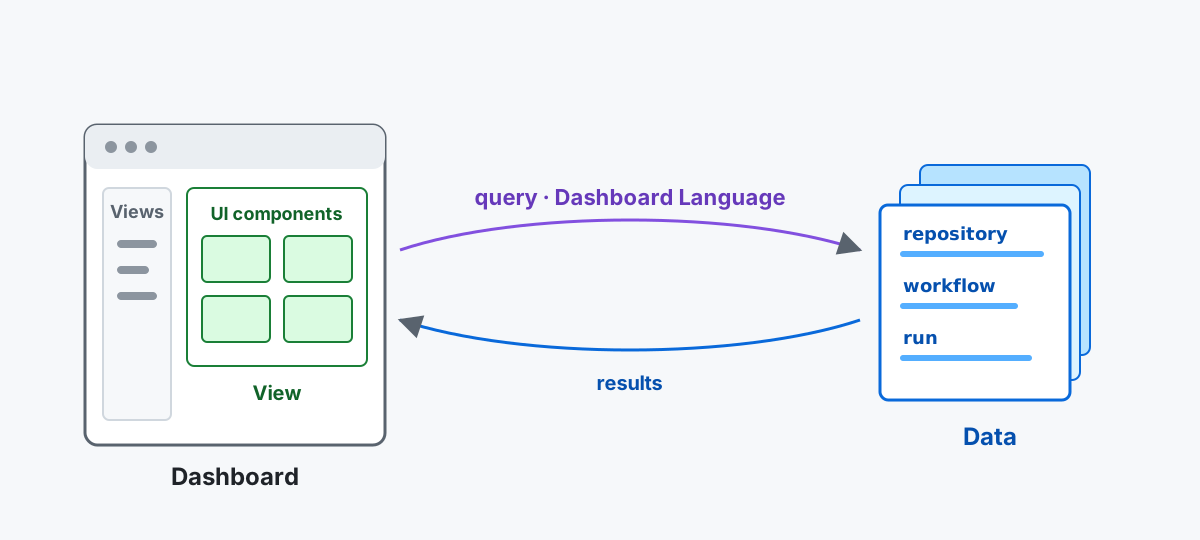
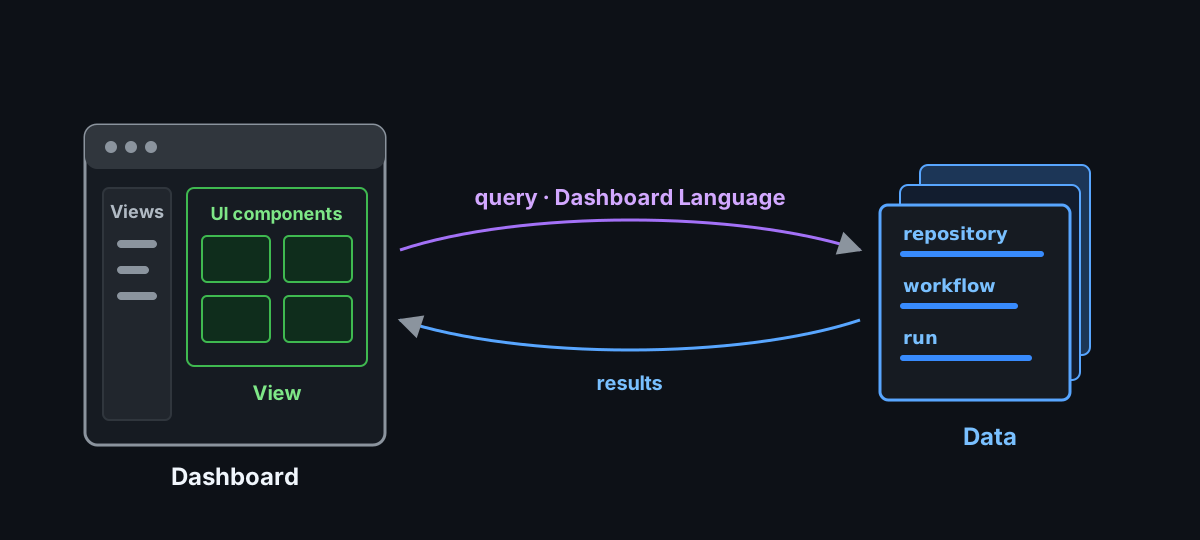
The dashboard is the operational view of your Central Agentic Ops control plane. It turns retained activity evidence into focused views, each designed to answer a specific question:
- What work is moving now?
- What has reached the repositories in scope?
- What needs attention or a closer look?
- Is the evidence complete and current enough to act on?
How it works
Section titled “How it works”Every view follows the same data flow:
- Activity collects evidence. The Activity workflow publishes a bounded snapshot of workflow activity.
- The dashboard prepares the data. A Web Worker normalizes the snapshot into a consistent data model and runs declarative queries.
- The active view presents the result. When the local data changes, the query runs again and the view updates.
The dashboard is not a live feed. It reads the latest snapshot collected by the Activity workflow. Data ingestion follows that evidence from collection into the browser, while the Data model explains the records and relationships available to every view.
On the first visit to a static dashboard, a dismissible import screen explains how the browser downloads and caches its first snapshot. Dismissing it keeps the import running; Overview continues to show preparation progress rather than calling campaigns idle. The import screen is automatically removed when a complete snapshot is ready, and its animation timers and progress subscription are released. If preparation fails or is cancelled while the screen is still open, it shows a Retry import action; Overview itself only reports that campaign status is not available yet, without a way to reopen the dismissed screen. Later visits use the cached snapshot during refresh. Backend-backed dashboards do not use this browser-local first-import experience. While the import screen is visible, 100 friendly notes rotate randomly every six seconds without repeating within a cycle. These notes are separate from factual import progress and pause when the screen is dismissed or the import is no longer running. The welcome screen keeps the Central Agentic Ops name visible in its header and uses Explore data as its only dismissal button; Escape also works. About this preparation reveals the browser-local import details and backend deployment alternative without crowding the first impression. Small screens use shorter copy and omit the explanatory step list so the brand and main action stay in view. The backdrop shares the exact grid styling used on Overview, with a slow opacity animation disabled when the browser requests reduced motion. The grid is decorative, not campaign telemetry.
Read a result
Section titled “Read a result”Treat each result as a starting point for investigation, not as a scorecard. A high count, a quiet period, or a warning tells you where to look next. Before following up, check the availability, completeness, and freshness shown with it:
- Empty means the dashboard has evidence and found no matching activity.
- Unavailable means the dashboard could not obtain the evidence it needs.
- Partial means the result may describe only part of the campaign.
- Stale means newer activity may not be represented yet.
These distinctions keep missing information from looking like a healthy zero.
See the Glossary for definitions of Dashboard terms such as rollout mode, safe output, outcome, and operational value.
Know the boundary
Section titled “Know the boundary”The canvas’s local preview server stays available between agent turns, including completed, interrupted, or failed turns. It stops when its canvas closes, when you exit the session, or when its extension process stops.
Design queries in a Copilot canvas
Section titled “Design queries in a Copilot canvas”The local Central Agentic Ops Copilot canvas includes a Query editor
page under Experimental. It is not enabled on the static website, hosted server, or ordinary local
preview. Enter an intent, subject, optional objective, and acceptance criteria,
then select Generate query and view. The Copilot SDK uses the bundled
generate-dashboard-ir query-design skill and Dashboard Language specification
to generate a complete query and declarative view.
The icon-only sparkle button next to Generate query and view, labeled
Improve all fields with Copilot for assistive technology,
uses the bundled author-dashboard-intent skill in one pure LLM Copilot SDK
session to refine intent, subject, objective, and acceptance together.
Review the enhancement before generating the query; if you edit the
authoring text while the request is pending, the editor does not overwrite
your changes. These sessions have no tools or automatically discovered skills;
the trusted authoring skills are supplied as prompt context.
Subject, objective, and acceptance share a 512-character combined limit,
counted as Unicode characters just like query/view annotations. The editor shows
the current total and blocks generation when it is exceeded. The sparkle action
can still condense an overlong draft; its output is checked against the same
combined limit before replacing any fields. Keep additional detail in intent.
The browser data worker validates the draft. The default canvas backend executes
it against canonical data in a server-side SQLite worker; selecting indexeddb
executes it in the browser data worker instead. SQLite previews do not open
browser IndexedDB. Successful previews stay subscribed to data changes and show the rendered
view without exposing a source editor. Invalid generated documents
show diagnostics without replacing the previous preview. Generation automatically
feeds worker validation errors and the rejected draft back to Copilot, with at
most ten attempts per click; only a validated document updates the preview.
If all attempts fail, the editor reports the failure and retains the diagnostics.
Each attempt uses AI credits. Cancel stops the generation/repair loop or
generation or validation. Save as custom view persists the accepted document
in .cao/dashboard/custom-views/<id>.json, adds it to Custom views in local
canvas navigation, and opens the rendered view. Identical saves reuse the same
file; independently saved queries are namespaced to avoid collisions. The set
is workspace-local, survives canvas/server restarts, and is not published or
installed into other repositories. .cao/ is ignored by Git. Up to 50 custom
views are supported; remove a saved JSON file to remove that view. Unsaved
drafts still belong to the currently loaded canvas; save a custom view to keep it.
Saved files are content-addressed; use the editor to save revisions instead of
editing or renaming those files in place.
Generation requires Copilot authentication and uses AI credits. Only authoring
text and trusted language context go to the SDK, not dashboard evidence rows.
The generation session has no shell, filesystem, MCP, or write tools. Preview
documents cannot add CLI actions or UI elements, and each view is capped at
200 rows. Every preview source must be a declared query with a limit between 1
and its view’s data.limit, so the worker bounds the result before rendering.
Layered charts omit data.limit and use a source query limit of at most 200.
Forms, lazy pagination, and drill navigation are not supported in previews.
This editor does not change rollout policy or control-plane authority.
The published dashboard helps you observe and investigate campaigns. It does not start work, approve an output, grant workflow authority, change rollout policy, or write to a repository. Make those decisions through the control repository and its reviewed workflows and policy.
Configure compiler defaults
Section titled “Configure compiler defaults”Maintenance → Governance is visible only in local server --admin mode or
to an authorized hosted administrator with a current, assured session. It is
hidden in published dashboards, ordinary local previews, and Copilot canvas
mode, including through direct links. To edit defaults, start an authorized
loopback admin dashboard:
npm run dashboard:local -- --repo OWNER/REPOSITORY --adminSelect Organization, Enterprise, or Repository and enter the exact
target. Load defaults uses gh aw env get to obtain every compiler default
supported by the installed gh-aw version. Edit the complete YAML document,
keeping values as quoted strings or null, then select Preview changes.
Review the proposed sets and deletions, choose Review and apply, and confirm
the exact scope and YAML. All commands use the existing approved CLI-action
queue and your local GitHub CLI credentials. Reload after applying to verify
the saved variables; recompile workflows to incorporate changed compiler defaults.
Organization and enterprise variables are inherited by repositories with access
to them, including CAO repositories, but may also affect repositories outside
CAO. Existing narrower overrides and variable access lists remain in effect.
null or omitted keys remove an override at the selected scope, not an inherited
default. Visibility controls access for newly created variables only.
This page manages non-secret GitHub Actions variables, not secrets, rollout policy, or live authority. Never enter credentials in the YAML. The chosen scope requires administrative access; hosted repository installation tokens cannot perform these operations, so editing remains disabled for hosted administrators.
Continue reading
Section titled “Continue reading”- Start with Overview to understand the default operational view.
- Choose where to host the dashboard in Deployment options.
- Read Data ingestion to follow evidence from GitHub Actions into the browser.
- Use the Data model to understand entities, relationships, identities, and retention.
- Build views with the Dashboard Language guide, then consult the language specification and view catalog for complete reference material.
- Let browser agents read the same pages through WebMCP, and agents without a browser or shell through Agent analysis.